Learn to prepare routines, train with your watch and understand your progress. Step-by-step guides and answers for every stage.
No matches. Try another word or browse the index.
Routines and exercises
Step by step
Open Routines and tap + to create a routine. Give it a name you can also recognise on your watch. Use the description for its goal or the day it belongs to.
Tap Add exercise. Search the library by name and filter by muscle or equipment. Open the details to check the movement, then select the exercise you need. Repeat to complete the routine.
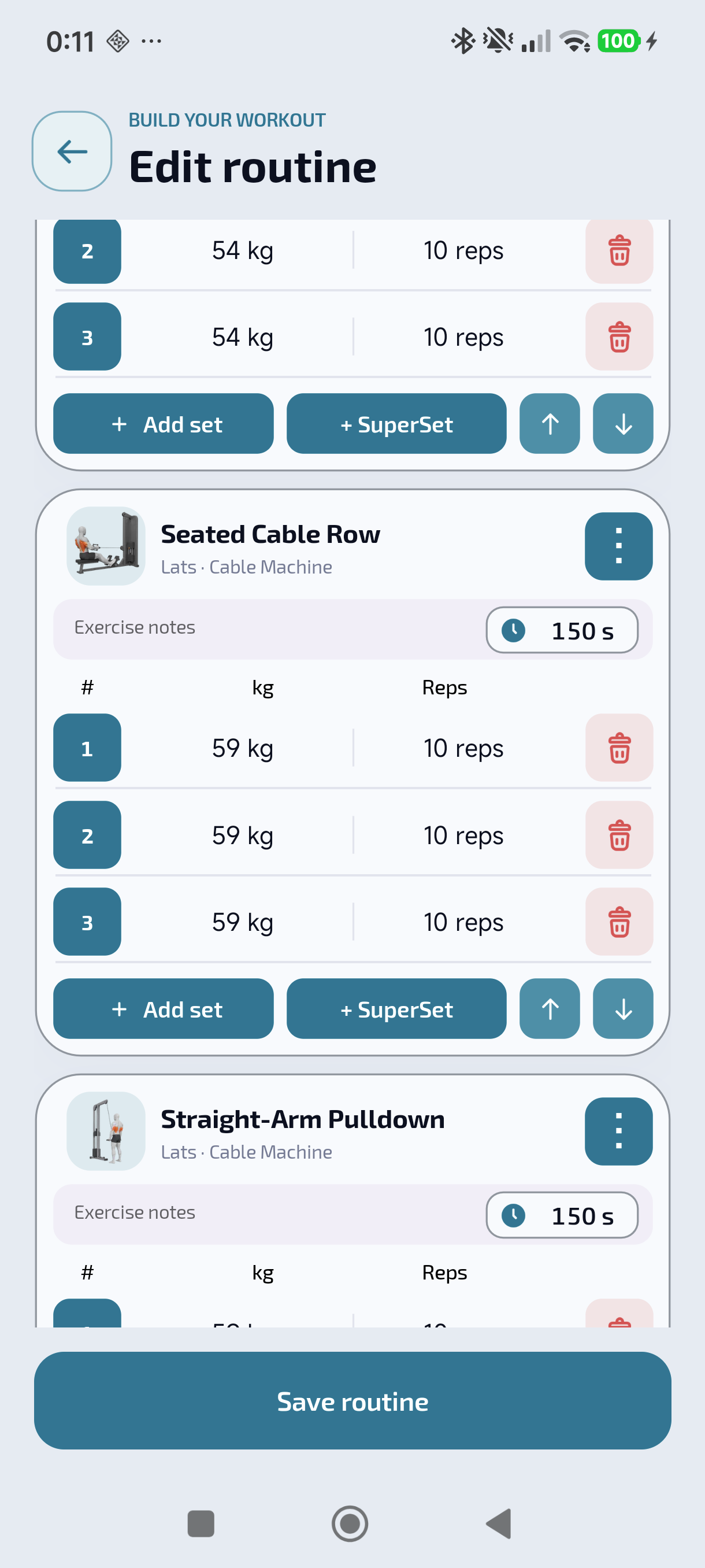
Set each row: weight and reps, or time and distance depending on the exercise. Add set creates another row; the delete icon removes that set. Check the units before saving: routine values are targets, not completed results.
Set the rest period and useful exercise notes, such as a machine setting. Use the superset option to alternate exercises. Check the grouped exercises and sets: a superset changes the sequence, not the identity of each exercise.
Tap Save and check the routine in the list. Edit it later or duplicate it for a variation. Free allows up to three saved routines; Premium removes this limit. Before training without your phone, check that the updated routine appears on your watch.
A routine is your plan; a workout is the session you perform and save.
123
Set up each exercise
Tap the time to adjust rest. Add exercise notes on its left.
Each row is a set. Tap weight or reps to change the target; Add set creates another row.
Tap + SuperSet to group this exercise with another in the routine. The arrows on the right change its position.
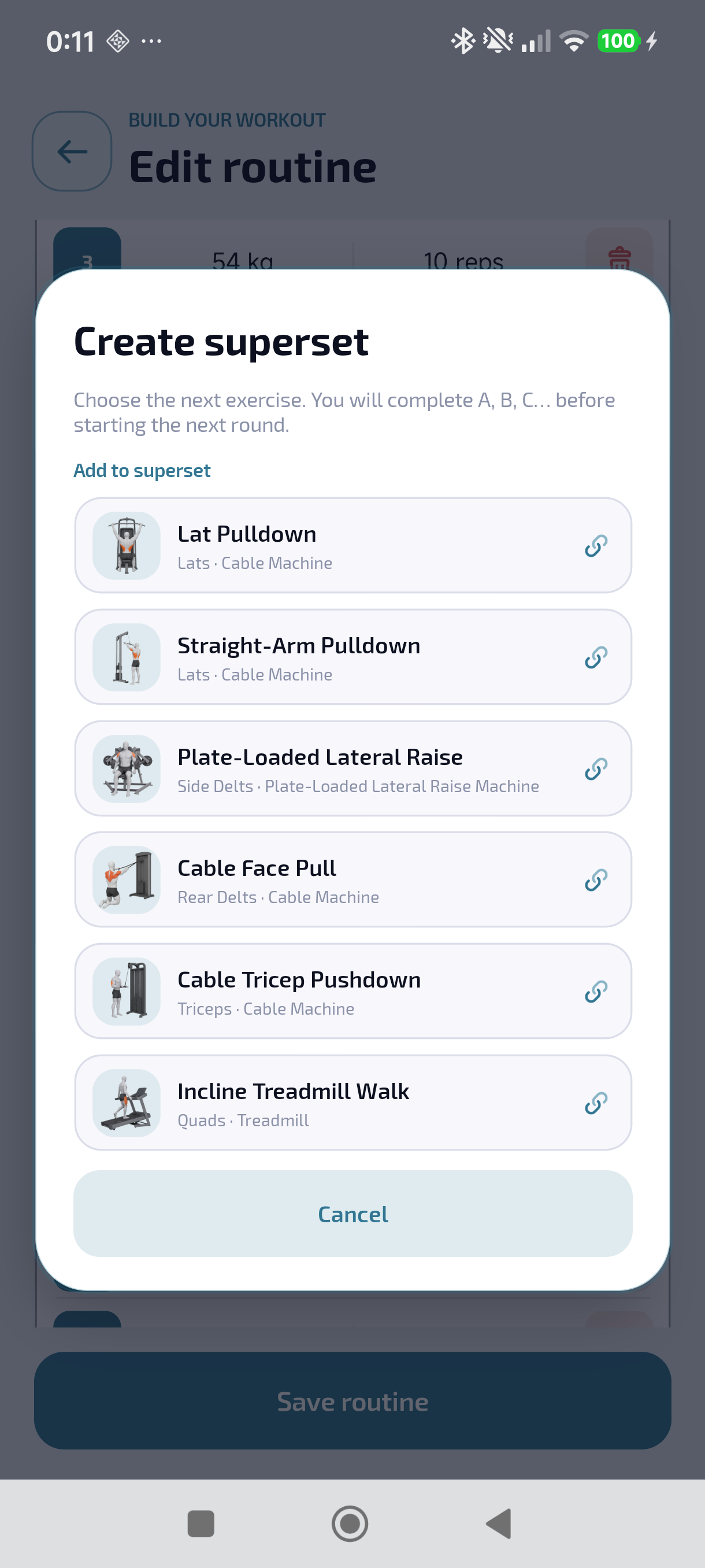
Choose the exercise to alternate
The selector lists the other exercises in the routine. Tap one to group it: perform one set of each exercise before returning to the first, for example A → B → A → B. Check the group in the editor and save the routine. Cancel closes the selector without adding a superset.
Exercise library and selection
Step by step
Search the exercise name and combine filters to narrow the list. If you cannot find it, clear the search or filters first. Equipment helps distinguish variations of the same movement.
Tap the card’s arrow to view muscles, instructions, tips and available animation. When browsing from a routine, tapping the card adds the exercise; the arrow lets you review it first.
If an exercise is missing, create it manually from the library. Tap the create exercise button, enter its name and choose the main muscle and tracking mode. You can add equipment and notes. Review the details and tap Create and add to use it in your routine.
Record a workout
Step by step
Open your routine and start a session. Check the selected exercise and set before entering values. Tap a number to adjust it with the selector or type it with the keypad, then confirm.
Complete the set after performing it. Rest starts according to your settings and prepares the next step. During rest, +15 and −15 adjust the time; Skip ends that rest. Skipping rest does not remove the exercise.
If equipment is occupied, move to another exercise without marking it skipped: its sets remain pending. Skip exercise on the watch is different: after confirmation, it excludes the entire exercise, including completed sets, from the workout result.
Pause stops the session until you resume; minimising lets you use other screens. Finish saves the result. Discard removes it from phone and watch, including after a device reconnects. Read the confirmation: discarding is not pausing.
Train with your watch
Step by step
First connection: keep the watch and its paired phone nearby, with Gymaryx open and signed in on the phone. Sync your routines before training.
With downloaded routines you can train while the phone app is closed. Automatic locking activates after your chosen idle time (5, 10, 15, 20 or 30 seconds) or when the screen turns off. Waking the screen unlocks touch controls, but the crown remains protected until you touch the screen. If the app locks while the screen stays on, double-tap quickly: unlocking taps do not edit values. You can disable automatic locking in options.
Swipe to options or tap its icon to pause, finish or discard. Time, heart rate and calories appear when the device and permissions provide those readings.
After finishing, open Gymaryx on your phone and keep both devices nearby until receipt is confirmed. Pending sessions remain on the watch: do not delete its data or uninstall before transfer.
Watch volume: in workout options, tap Volume. Turn the crown or swipe vertically on the card to adjust the percentage. At 0%, a muted icon appears and a vibration confirms the change; rest vibrations remain enabled. The volume is saved on that watch and does not change the system volume.
History and result corrections
Open history and select a session by date. Review its duration, exercises, completed sets and available health data. Use date filters to find older sessions.
A routine is a template, not evidence of a workout: history contains finished sessions. Planned sets are not completed sets. Skipping an exercise also excludes its already completed sets.
When correcting a result, check the exercise, set and units before saving. Discarding an ongoing workout and deleting a history entry are different actions. Read the confirmation and do not repeat a workout merely because synchronization is pending.
History, charts and photos
Step by step
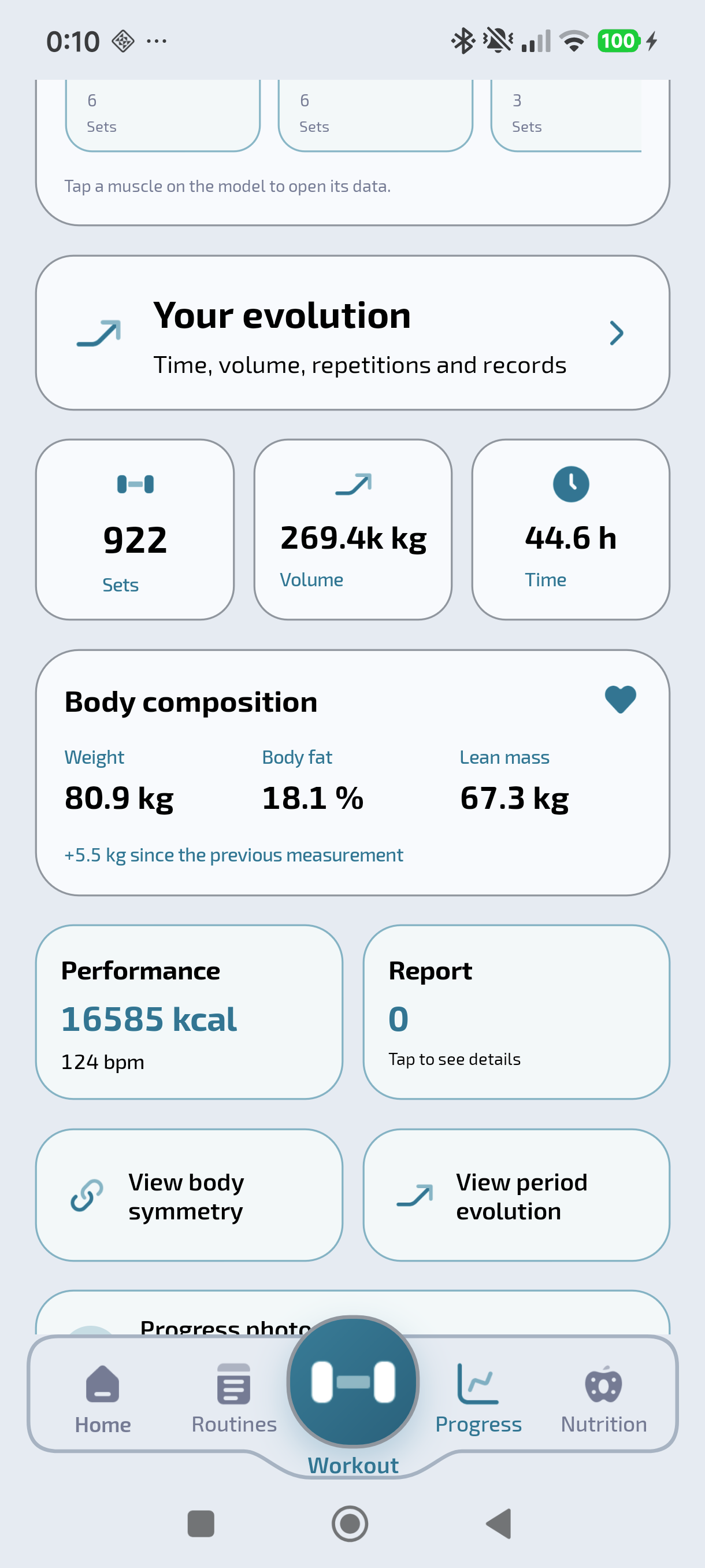
Open Progress: the muscle map shows a session, a week or four weeks. From here, open statistics, body analysis, comparisons and photos. Choose the period and metric before reading a chart.
In workout statistics, review workouts, time, sets and volume. Volume for weight-and-rep exercises combines those values; it does not mean calories. Tap selectable charts to inspect an exact value rather than only their shape.
Review muscle training distribution and compare equivalent periods. In Body analysis, review your measurements and trends. Photos provide another visual reference; use similar conditions and do not treat one photo as an exact measurement.
If data is missing, check that you finished the session and that it appears in History. Check the selected period and units. A watch workout awaiting reception is not necessarily lost: open the phone app to complete transfer before deleting or reinstalling anything.
Open a saved workout in History to review exercises and results. Charts represent recorded data; tap points or bars where selection is available.
Progress lets you record measurements and photo sessions. Similar posture, distance and lighting make comparisons easier. Progress photos are not automatically published to Community.
Direct sets use this muscle as the primary mover. Indirect sets train it as a secondary muscle and are weighted at 50% in volume.
The central change compares total attributed volume between both periods. Consistency is the percentage of days with a workout, and records come from saved estimated best marks.
123
Read your progress
Choose Week, 3 months, Year or All. The dates above the chart confirm the period shown.
Swipe the indicators to choose time, volume, reps or records. Switch between bars and lines.
Tap a bar or point to see its value. Compare the same metric over equivalent periods.
Measurements, trends and symmetry
In Progress, record the available measurements with the correct date and unit. Use the same measuring point and similar conditions when comparing changes. A missing measurement is not zero.
Review trends by period and tap chart data to inspect specific values. Compare equivalent periods and check each chart’s metric: body weight, measurements and training load are different quantities.
Symmetry requires measurements from both sides. It indicates which side measures larger; it is not a diagnosis. If a result is missing, check that both measurements exist and that the selected period contains enough data.
Photo sessions and comparison
Create a photo session in Progress and check its date. Add the available views from camera or gallery. Keep framing, posture, distance and lighting similar for useful comparisons.
To compare, choose two sessions and a view available in both. If a view is missing, add its photo or choose another. Progress photos and the comparison tool require Premium.
Progress photos are personal and are not automatically posted to Community. Always check the selected session before deleting an image.
Nutrition and daily logging
Select the day before adding food and check the meal it belongs to. Search for the food, use the available scanning options or create a manual entry if needed.
Always check quantity, unit and serving: values per hundred grams are not values for a whole item. Review recognized data before confirming. Summaries use the amounts you log; incomplete or duplicate entries change the totals.
Review nutritional trends by period to compare your logs. Food data and personal targets support tracking and do not replace professional assessment.
Profile and community
Tap a person's name or photo to view their profile, posts or follow them. Visibility depends on privacy and the relationship between accounts.
Following someone and being friends are different. You can follow a public profile without being friends with that person. Community on the Home screen only shows unread posts from people you follow, provided their privacy settings allow you to see them. Being friends does not mean you follow each other: you can view accessible content on their profile, but you also need to follow them for their posts to appear on Home. Following does not give you access to friends-only posts; an accepted friendship is required.
Edit your photo, alias and biography in Profile. Your alias must be available. New profiles are public; change this in Privacy and review discovery and request settings.
Browse posts from newest to oldest. Swipe the profile carousel to see photos and videos.
Photos and videos
A post supports up to 5 files. Switch between photo and video in Camera; Gallery detects the selected file type.
Videos up to 30 seconds or 200 MB. Long videos are trimmed and compressed; files above the input size limit must be reduced before selection. Review the clip before posting.
Wait for processing to finish before previewing. Review or remove attachments before publishing. Keep the app open and leave enough free storage during conversion.
Check phone permissions if Camera or Gallery will not open.
Preferences and permissions
Change language, theme, accent and units in Profile. Watch preferences update when syncing with the phone.
Configure sounds, vibration and rest notifications. Silent mode, Do Not Disturb and system permissions can limit alerts.
Health connections need authorization. Heart rate and calorie readings depend on available data; a missing reading does not mean zero.
Premium, purchases and codes
Check your plan and coverage in Profile → Premium. Before buying, review the price, billing period and renewal terms shown by Apple or Google. Restoring purchases recovers an existing purchase; it does not create a new payment or redemption allowance.
An invitation grants one month of Premium. Your first invitation does not require a previous purchase. After that, you need a new paid purchase and must respect the limit of one invitation per purchase duration in a rolling twelve-month period. Buying the same duration again does not reset this period. A new calendar year, device or store does not reset it either.
Your own reward has a separate allowance: at most one every twelve months. You may receive someone else's invitation and your own reward in that period. You cannot redeem your own invitations; your personal reward is account-bound. Retrying a code does not add time again. Invitations expire ten days after generation.
Eligible annual purchases join the campaign according to their position. The first 10,000 participants receive five one-month invitations and may earn a three-month personal reward.
Premium coverage and the next billing date are different. A billing extension is confirmed only when the store accepts it; check Apple or Google for the billing date. If an operation is pending, do not buy again to resolve it: check its status or contact support. Pending free time may prevent a new purchase in Gymaryx; restoring remains available.
Canceling renewal stops the next automatic charge and preserves current access and earned gifts. A store-confirmed refund removes the purchaser's benefits derived from that purchase and invalidates their outstanding codes. Invitees keep time already received. Refunds follow Apple or Google terms.
Gifts cannot be converted into money or transferred between accounts. For a rejected code, check its recipient, expiry, twelve-month limit and whether you made a valid purchase after your last redemption.
Loading or synchronization problems
Check Internet access and retry. For the watch, also check Bluetooth, system pairing and proximity to the phone.
Sync missing or updated routines before starting. If a finished workout is missing, open Gymaryx on the phone, wait for receipt confirmation and check History before repeating any action.
Do not uninstall or clear data with pending workouts. If the issue persists, note the time and exact message and contact support.
Frequently asked questions
Why is my watch workout missing?
Open Gymaryx on the paired phone and keep both devices nearby. Check reception, then History and its filters. If still pending, keep the watch data and contact support with the routine and time.
Record dated measurements and choose comparable periods. For photos, open the comparison view and select the sessions. Photos and comparison require Premium; all body measurements are included in Free.
In Premium, tap Restore purchases with the store account used to buy. Wait for Google Play or App Store validation. If it fails, send support the platform and message, never passwords or bank details.
Video is trimmed to 30 seconds and compressed before posting. Wait for processing and preview the clip. The input limit is 200 MB per video; each post supports up to five photos or videos.
Edit your Community profile to change the photo, handle or bio. Review profile privacy and each post’s visibility. Progress photos are separate and are not automatically posted to Community.
Describe what you were trying to do, the steps to repeat it and the message shown. Attach a screenshot without sensitive data if useful. Never send passwords or access codes.